
Dealer Admin helps you manage Virtual Keypad app users on you customers’ systems. In this section, you’ll learn how to add, reset, edit, and delete app users.
Add an App User
To add an app user, complete the following steps:
-
Log in to Dealer Admin (dealer.securecomwireless.com).
-
Go to Customers and select the customer’s name.
-
Go to App Users, then select the

-
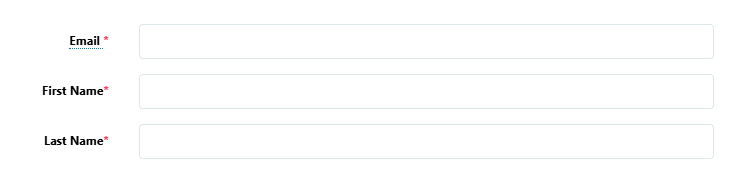
Enter the user’s Email, First Name, and Last Name.
-
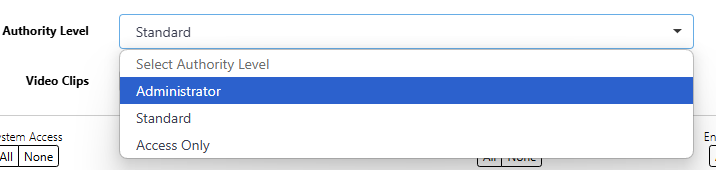
Select an Authority Level in the drop-down menu:
-
Administrator—The user can manage multiple systems.
-
Standard—The user can manage a single system.
-
Access Only—The user has temporary door access.
-
-
If you want to email the user video clips, select the Email Video Clips checkbox.
-
Select the systems you want the user to have authority to access.
-
Choose if you want users to be able to View User Codes or Enable Reports. If you want to allow Virtual Keypad users to initiate a system panic from the app and website, enable any of the following options:
-
Police Panic
-
Fire Panic
-
Emergency Panic
-
Note: To initiate a system panic, sign in to Virtual Keypad, open the Menu icon, and select Panic. Press and hold the desired panic option for three seconds.
-
Select Save. After you add an app user in Dealer Admin, the user is sent a welcome email with a link to finish setting up their account by creating a password.
Edit an App User
To edit an app user, complete the following steps:
-
Log in to Dealer Admin (dealer.securecomwireless.com).
-
Go to Customers and select the customer’s name.
-
Go to App Users, find the user’s row, and select the

-
Select Edit.
-
Edit the user’s information as needed as needed.
-
Select Save.
Delete an App User
To delete an app user, complete the following steps.
-
Log in to Dealer Admin (dealer.securecomwireless.com).
-
Go to Customers and select the customer’s name.
-
Go to App Users, find the user’s row, and select the
-
Select Delete.
-
A dialog box pops up to confirm your decision. To delete the user, select Delete.
Reset App User’s Password
Note: Users can also select Forgot Password when logging into Virtual Keypad to reset their password. For more information, refer to Virtual Keypad App Help: Forgot Your Password.
If a user has forgotten their password, complete the following steps to reset the user’s password:
-
Log in to Dealer Admin (dealer.securecomwireless.com).
-
Go to Customers and select the customer’s name.
-
Go to App Users, find the user’s row, and select the
-
Select Reset Password. A dialog box displays to confirm your decision. To reset the user’s password, select Confirm.
-
Select Save.