
Dealer Admin helps you manage devices on your customers’ systems. In this section, you’ll learn how to add, edit, and delete devices.
For complete information, refer to the appropriate installation and programming guides from DMP.com/resources.
Refer to the following information:
Add a Device
To add a device to a system, complete the following steps.
-
Log in to Dealer Admin (dealer.securecomwireless.com).
-
Go to Customers and select the System Name.
-
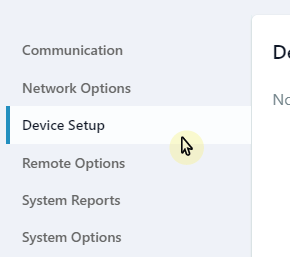
In left menu, go to Programming > Device Setup.
-
Select + Add Device in the upper right corner.
-
Enter a Device Number and Device Name.
-
Choose a Device Type and Device Communication Type.
-
For wireless devices, enter additional device information, such as the device Serial Number and Supervision Time.
-
Select the

Edit a Device
To edit a device, complete the following steps:
-
Log in to Dealer Admin (dealer.securecomwireless.com).
-
Go to Customers and select the System Name.
-
In left menu, go to Programming > Device Setup.
-
Select a device.
-
Edit the device information as needed, such as the Device Number and Device Name.
-
Select the
Delete a Device
To delete a device from a system, complete the following steps:
-
Log in to Dealer Admin (dealer.securecomwireless.com).
-
Go to Customers and select the System Name.
-
In left menu, go to Programming > Device Setup.
-
Find the device that you want to delete and select Delete.
-
A dialog pops up to confirm your decision. To delete the device, select OK.
Add an Access Door
To add an access door to be managed in Virtual Keypad, complete the following steps:
Add the Device
-
Log in to Dealer Admin (dealer.securecomwireless.com).
-
Go to Customers and select the System Name.
-
In left menu, go to Programming > Device Setup.
-
Select Add Device.
-
In Device Name, give the door a name according to its location or purpose.
-
In Device Type, select Door.
-
To make the door a private door that can only be accessed by the profiles it’s assigned to, toggle Private Door ON.
-
In Device Communication Type, select the appropriate connection for the door.
-
Configure other options as needed.
-
To add a card format, expand Card Formats, select Add Card Format, and configure the options as needed.
-
Select the
Add the Door to Virtual Keypad
-
Log in to Dealer Admin (dealer.securecomwireless.com).
-
Go to Customers and select the System Name.
-
In System Information, select Edit at the top of the screen.
-
Scroll down to Virtual Keypad Access.
-
In Door Control, select Add.
-
Select the doors that you want to add, then select OK.
-
Select Save at the top or bottom of the screen.
To configure Profile Options, see Profiles (XR150/XR550).
To configure Group Options, see Groups (XT75).