
Add a Camera Using Auto-Discover
Cameras can be automatically discovered if they exist on the same subnet as the XV Gateway.
-
Go to Customers, then select the System Name that the XV Gateway is connected to.
-
Go to Video, then select + Device to XV Gateway to add a camera to the XV Gateway.

-
Ensure Auto Discover Devices is ON. Cameras that already exist on the same subnet as the XV Gateway automatically display in the Cameras list.

-
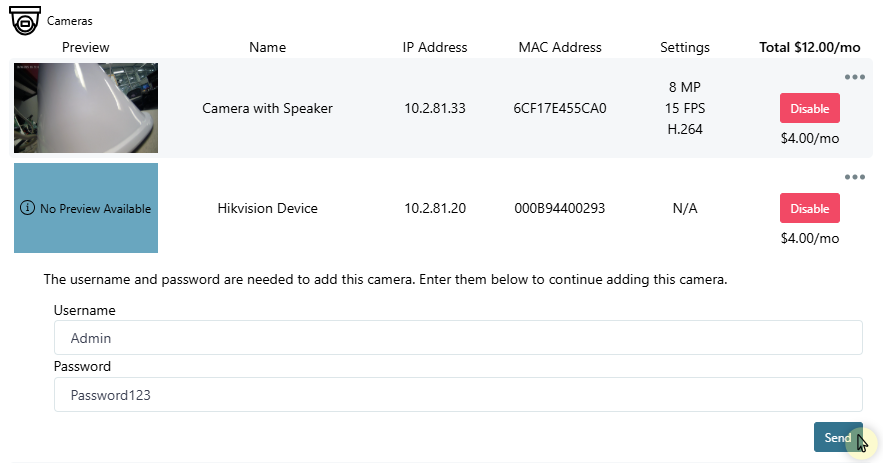
In Cameras, locate the camera you want to add to the XV Gateway. Select Enable to add the camera to the XV Gateway.

-
Enter the default Username and Password for your camera or the username and password you set previously. Select Send. The camera view displays a preview of the field of view.
-
Once the camera has been added, select Close

Manually Add a Camera
Cameras should be manually added when they are outside of the XV Gateway subnet.
-
Go to Customers, then select the System Name that the XV Gateway is connected to.
-
Go to Video, then select + Device to XV Gateway to manually add a camera to the XV Gateway.
-
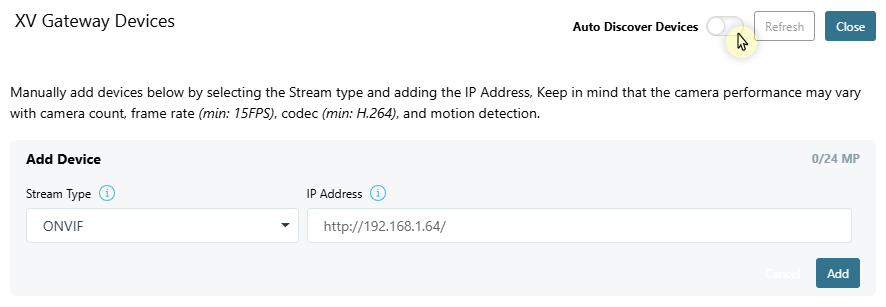
Toggle Auto Discover Devices OFF or select Add Manually.

-
At Stream Type, select ONVIF or RTSP Stream from the drop-down menu and enter the camera’s IP Address. Select Add.
.png?cb=991f5170a93b34560c18a4007ccc9d35)
-
Enter the default Username and Password for your camera or the username and password you set previously. Select Send. The camera view displays a preview of the field of view.
-
Once you have added the camera to the XV Gateway, select Close.
.png?cb=d8a5bcd5830d003951de47bc09d07058)