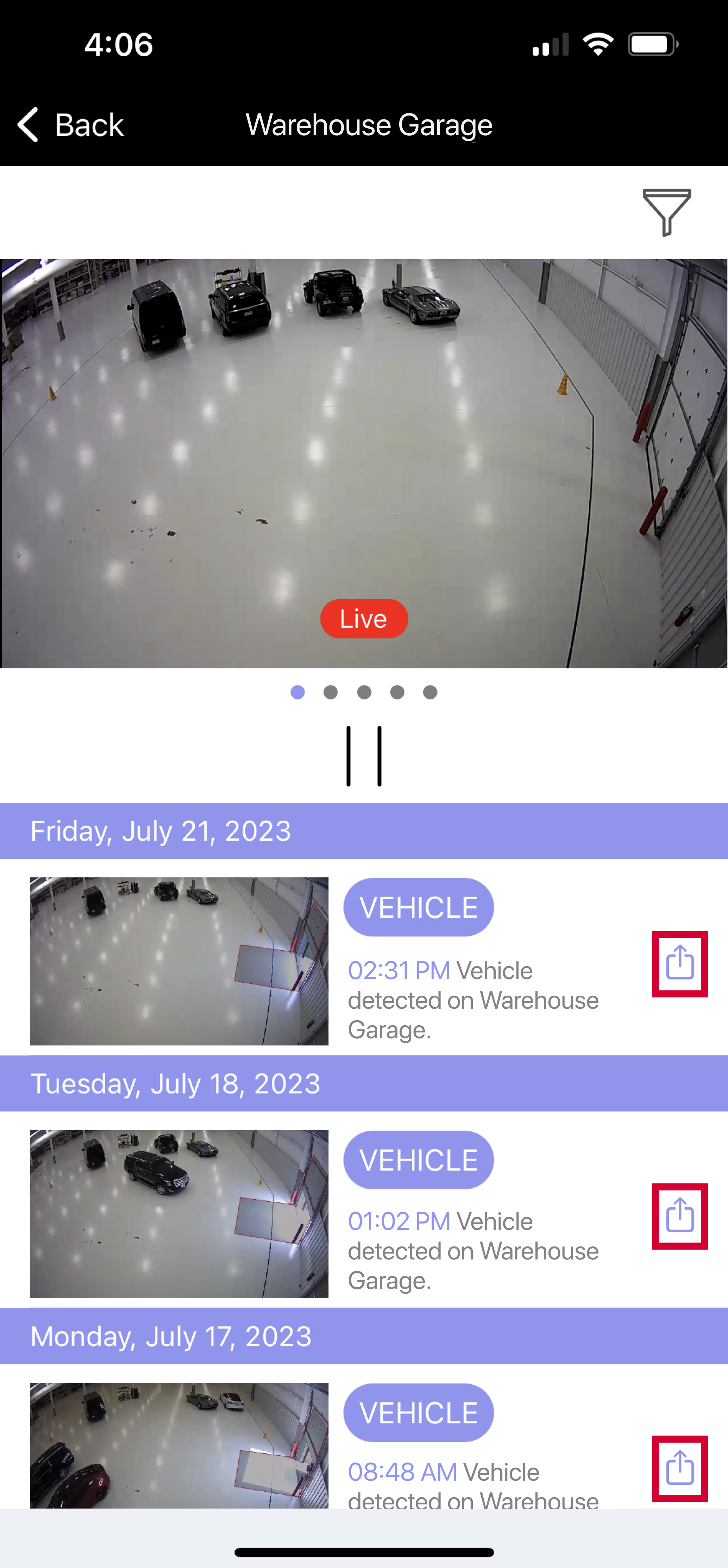
Reorder Camera Feeds
-
Go to Virtual Keypad app or browser, then enter your user code.
-
Go to Video, then select the Reorder icon to reorder the camera feeds to display in any order.
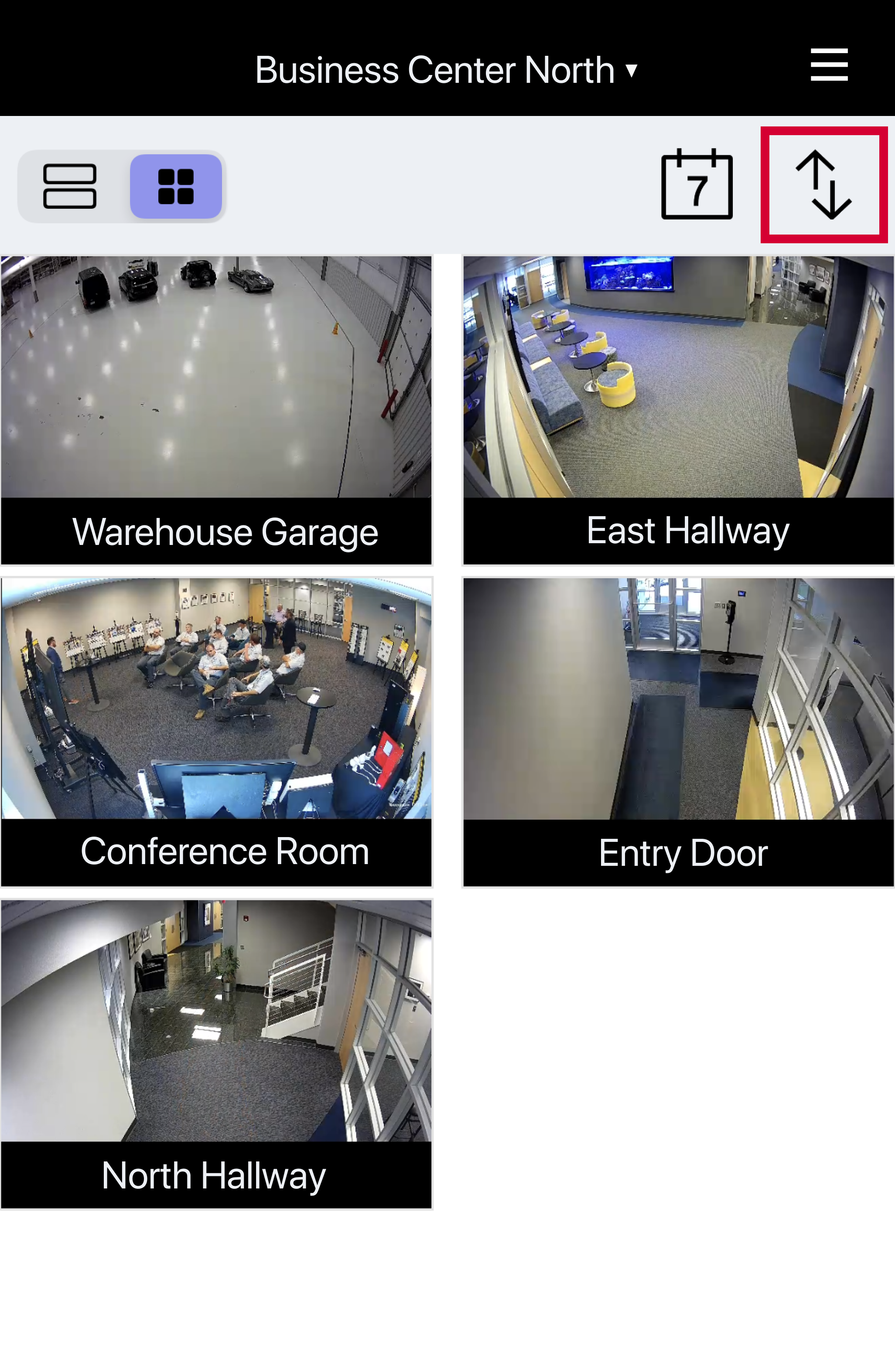
View Camera Feeds at Specific Times
-
Go to Virtual Keypad app or browser, then enter your user code.
-
Go to Video, then select the Calendar icon to filter to a specific time and view the camera playback feed for all cameras at that time.
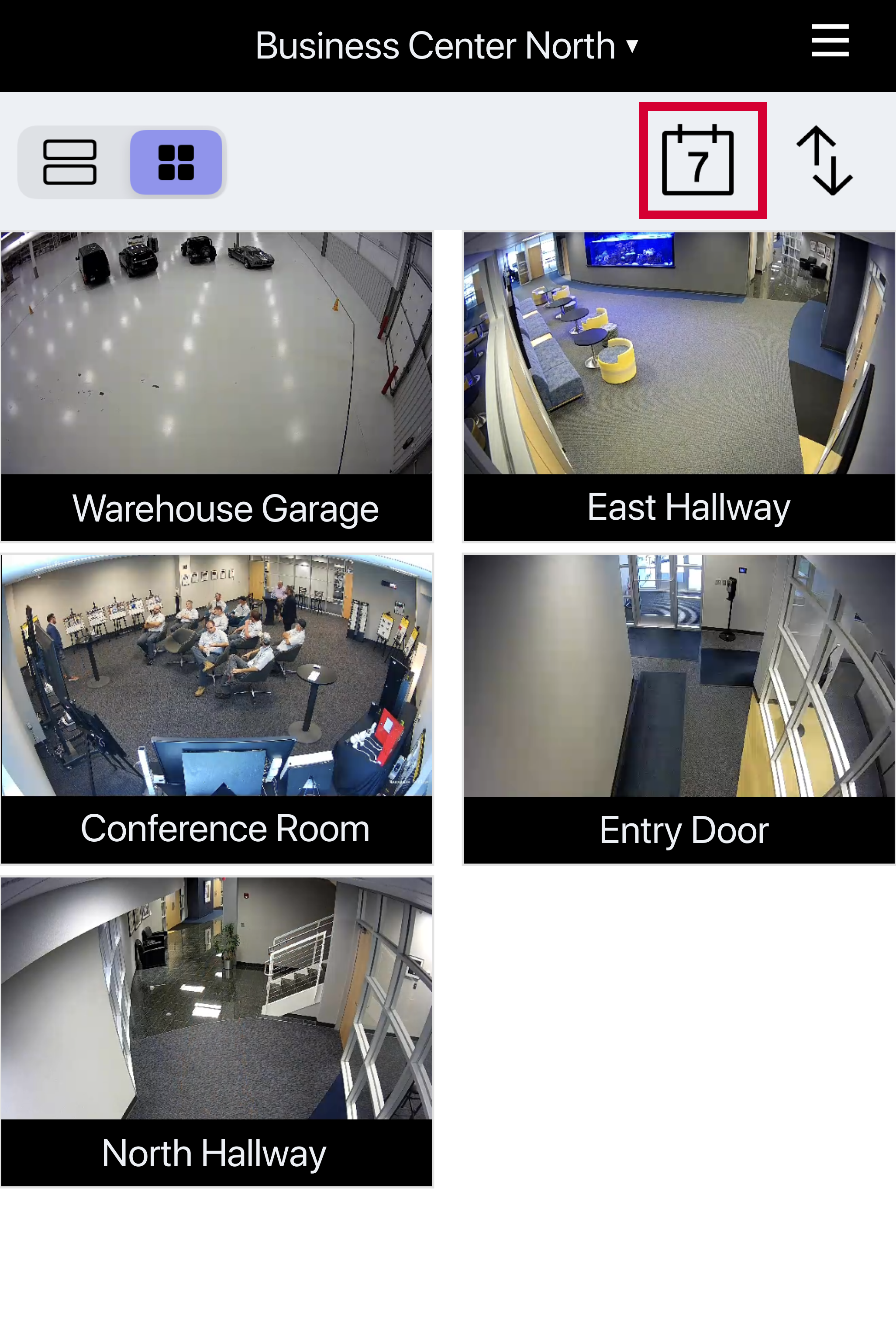
Use Single Camera View
-
Go to Virtual Keypad app or browser, then enter your user code.
-
Go to Video, then select a camera from the Video Page to see live video and video clips from a single camera. In this section, you can view live feeds, view event lists of a selected camera, download clips, and filter to a specific time or event type.
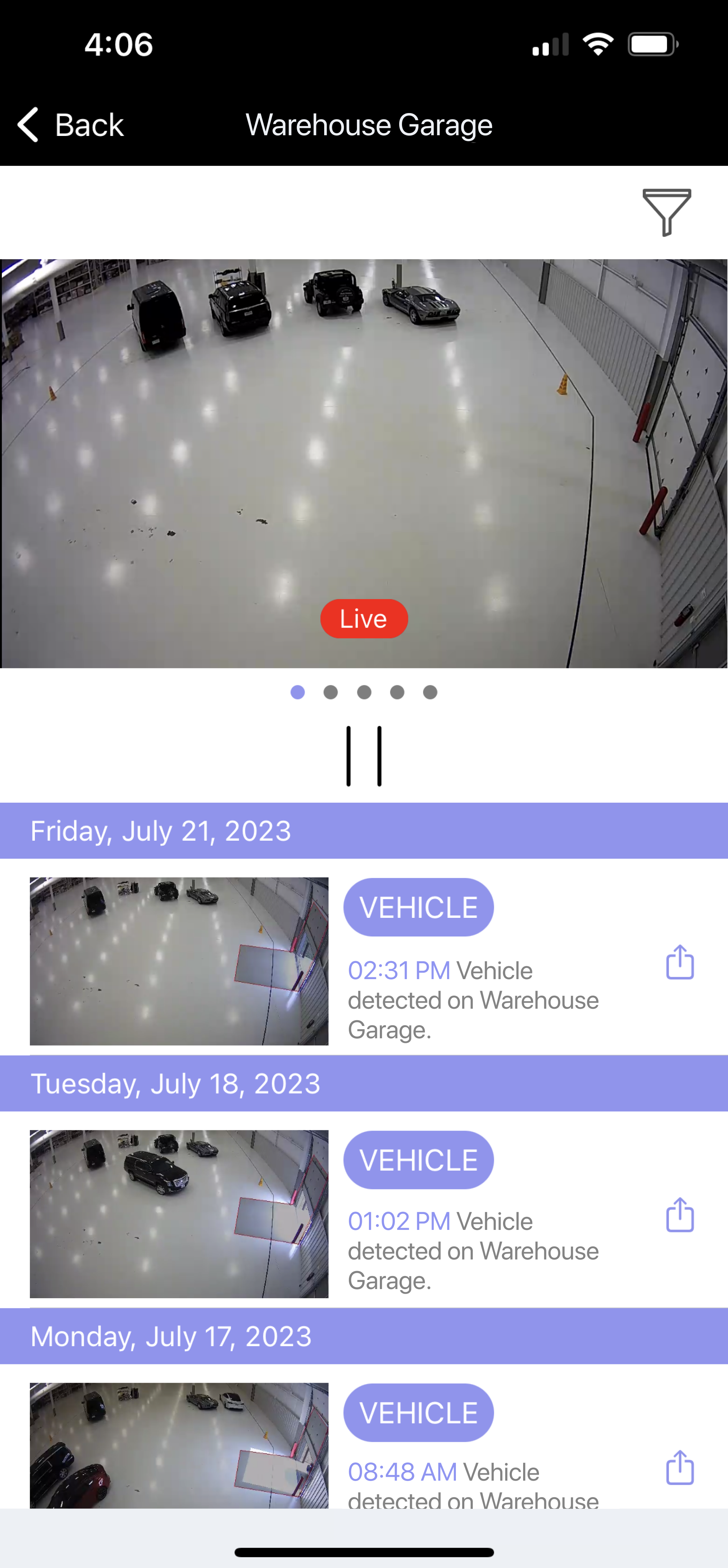
Use List View
-
Go to Virtual Keypad app or browser, then enter your user code.
-
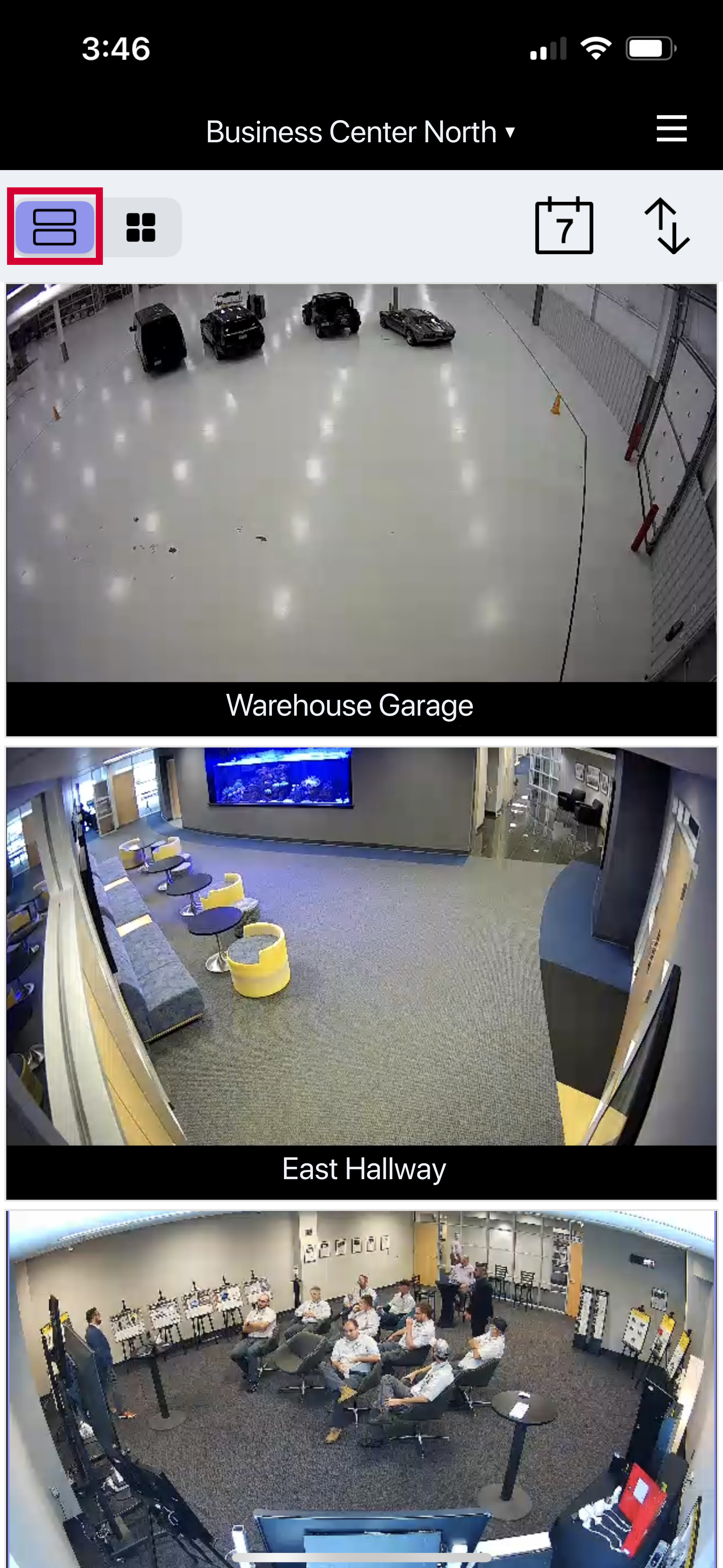
Go to Video to see live video clips from multiple cameras in a list format. Scroll down to see more cameras.
Use Grid View
-
Go to Virtual Keypad app or browser, then enter your user code.
-
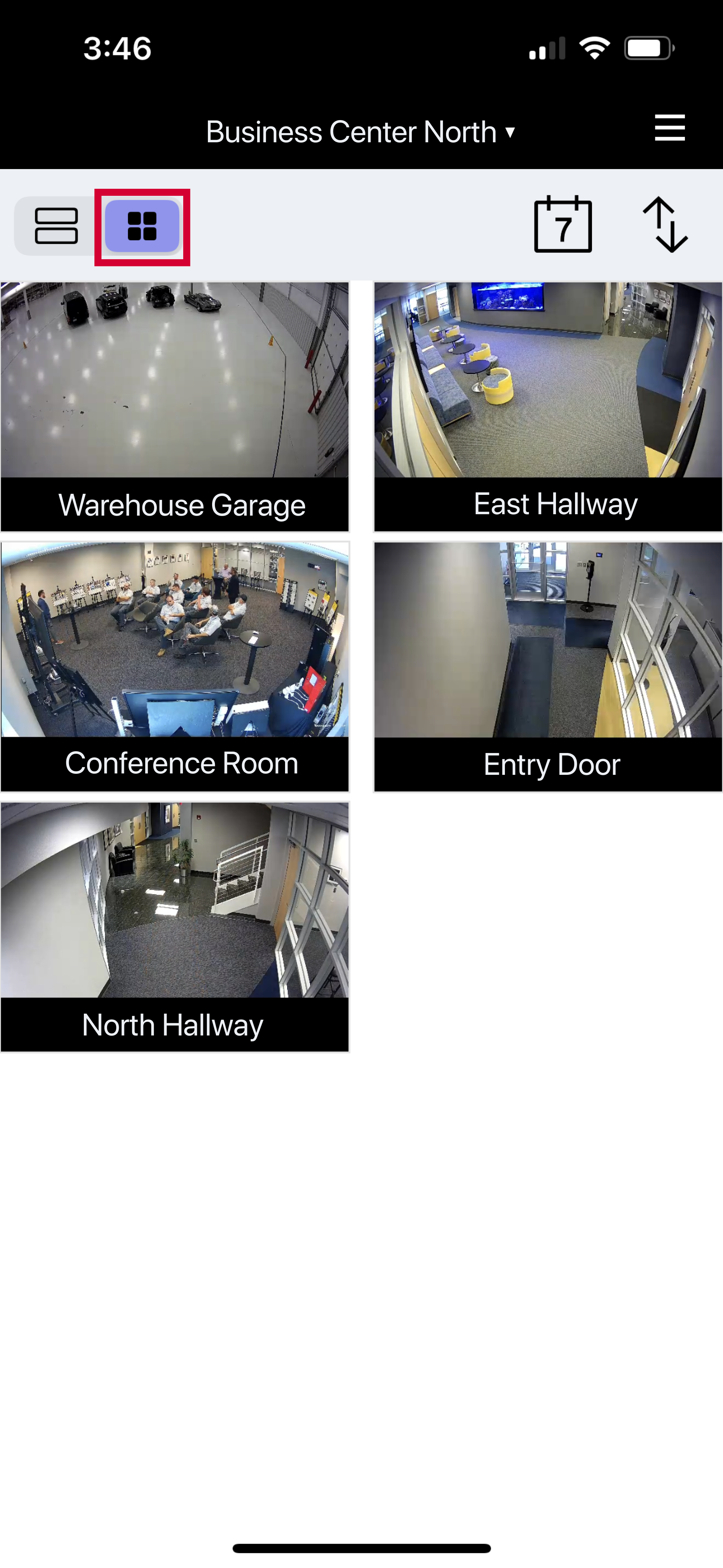
Go to Video, then select the Grid icon to see live video clips from multiple cameras in a grid format. Scroll down to see more cameras.
Download Video
-
Go to Virtual Keypad app or browser, then enter your user code.
-
Go to Video, then select the camera you want to download the video from. Select the Download icon.